

You delete three apps, watch the loading bar spin, and wait for the sweet relief of recovered gigabytes. Then you check your storage. The number barely moved. Sound familiar? It happens to millions of people on both Android and iOS, and the frustration is completely valid. The problem isn’t that the delete button is broken. The problem is that most people don’t understand what “deleting an app” actually removes – and what it quietly leaves behind.
The App Is Gone, But Its Ghost Remains

When we uninstall an app, we often assume it frees up all the space it used – but that’s not the case. Android often leaves configuration files, downloaded content, and cached data even after an app is fully uninstalled.
When you uninstall an application, Android usually removes the main app package, but some files may remain in your device storage. These leftover files can include cache files, data folders, logs, and other temporary files created by the app during its usage. Over time, these leftover files may accumulate and consume valuable storage space.
Users do not know that many applications leave leftover files on Android devices when the user uninstalls them. These files are not easily noticeable as the user does not look for them. However, they do still take up space on phones, and if a user is constantly installing and uninstalling different apps, these leftover files can take up significant storage space.
Cache: The Silent Storage Thief

When you install an app, it not only downloads its core package. It also generates temporary files known as cache. Cache includes thumbnails, offline media, browsing history, downloaded previews, and usage data.
These files help apps load faster and reduce repeated data usage. However, when you uninstall the app, not all cache data is always removed immediately. Some temporary files remain stored in background folders or system partitions. As a result, the space reclaimed appears smaller than expected.
While app caches generally speed up the performance of an app, the cache can get bloated after a long period of usage. The cache can reach a point where the amount of stored data outweighs the benefit it provides in terms of loading times.
Android and iOS Handle Deletions Very Differently
Android and iOS handle storage differently. On Android, uninstalling typically removes the core application but may leave external cache or data folders behind. Users can manually clear cache by navigating to Settings, then Apps, then Storage, and selecting Clear Cache before uninstalling. Clearing the cache first often maximises space recovery.
On iOS, cache management is more restricted. There is no universal “clear cache” button. This means iPhone users often have far less direct control over what gets wiped during a deletion.
Operating systems are built to protect stability, not aggressively wipe every leftover file. On Android devices, some system-managed folders can retain residual data even after the main app is uninstalled. If the app stored files in external storage, those folders may stay behind unless you delete them manually.
Offloading an App Is Not the Same as Deleting It
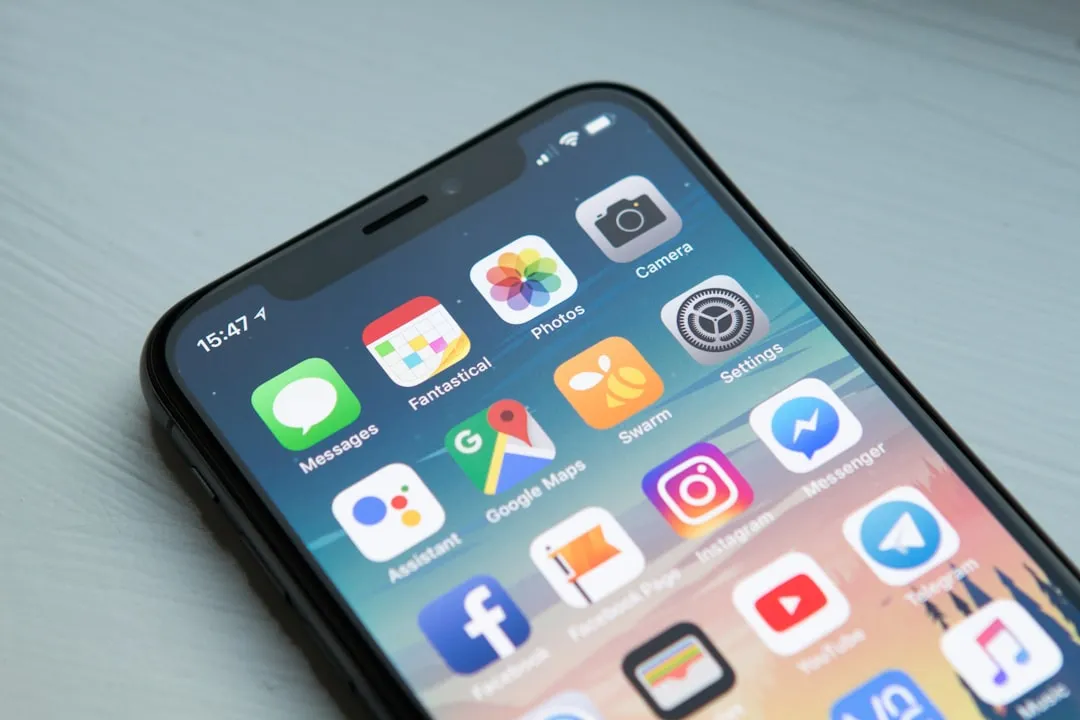
Deleting unused apps deletes the app and all its associated data. Whereas, if you offload an app, only the app is deleted; the related documents and data are retained. Many users don’t realize they’re choosing offload by default and wondering why nothing changes.
An app’s total size is split into two ways: App Size and Documents and Data. The Documents and Data section is home to the cached files, cookies, app login details, setting preferences, and downloaded files such as images, videos, and audio. Offloading an app will free up the amount of storage listed next to App Size, for only the app is removed and not its data.
This feature has existed since iOS 11 and remains one of the most underrated tools in iPhone storage management. Still, even users who know it exists often confuse offloading with a full delete and end up scratching their heads at the unchanged storage counter.
Your Storage Counter Doesn’t Update Instantly
There’s also the refresh lag. Storage numbers don’t always update instantly. Your device might wait until background processes finish or until you restart it before recalculating available space. That delay can make it look like deleting the app did nothing.
In most cases, the space isn’t lost; it just needs a little extra nudging to show up. A simple restart often resolves the discrepancy, but most people never think to do it and assume something is broken.
Preinstalled Bloatware Makes Things Worse

Aside from regular use, app updates, background sync activities, and automatic downloads also create new storage burdens. In some cases, preinstalled apps that can’t be easily removed, often called “bloatware,” consume hundreds of megabytes without providing any real value to the user.
Updates might bring new apps you didn’t ask for and may not even notice, as they got lost in the tidal wave of icons on your home screen. With them come updates and background files that add more bloat, and over time, they can devour huge swaths of free storage, even if you’re backing up your data without using cloud storage.
The Hidden File System You Never See

Android’s built-in storage manager doesn’t actually show you what’s on your device. It sorts everything into broad categories like Apps, System, and Media, which tells you almost nothing about where the real bloat is hiding. Manufacturer file managers make this even worse by applying custom filters that hide core directories altogether. So the heavy stuff sits buried in nested folders with no obvious way to find it.
Over time, these leftovers accumulate and consume hefty storage space, so it’s worth tracking them down and deleting them manually. To locate these hidden files, open your smartphone’s File Manager, go to Internal Storage then Android then obb, and look for folders named after apps you’ve uninstalled. If you’ve never cleared them, you might find files from apps deleted years ago.
Social Media and Gaming Apps Are the Biggest Offenders

Old game data and messaging app caches seem to be the worst culprits. Blame the high-resolution textures, offline databases, and leftover expansion packs that just sit in Android/obb/ long after you stop playing a game.
Draining storage to critical levels can have a noticeable impact on performance. Less storage space means less working room for temporary files, system updates, and background processes. It can also slow down calls for data by apps as they have to sort through an ever-growing pile of information.
The assumption that storage fills up because of photos and videos is only partly right. The less visible culprits accumulate silently in the background. Social apps like Instagram and TikTok are particularly aggressive at writing cached previews, auto-downloaded media, and usage logs to your device.
System Data Can Balloon Beyond Your Control

Apple Intelligence alone consumes around 7GB on supported iPhones. Cult of Mac reported in January 2026 that users on Apple Community forums were seeing system data balloon to over 130GB on devices running iOS 26, with no clear way to reclaim the space without a full factory reset.
Developer discussions noted that early programmers worked within extreme constraints demanding efficiency, while modern developers operate with fewer limits, enabling faster development but also enabling bloat. The result is apps that ship features faster but consume storage as a side effect that nobody optimizes for until users start complaining.
What Actually Works to Reclaim Your Storage

Some Android devices offer storage management tools that identify unused apps and temporary files. Applications such as Files by Google can highlight large residual files that remain after deletion.
Before deleting apps, it’s helpful to see which ones consume the most storage. On Android, this can be done by opening Settings then Storage or Settings then Apps to see a detailed breakdown. On iPhones, users can navigate to Settings then General then iPhone Storage to view a list ranked by file size and total space used.
Check which apps consume the most storage by opening your phone’s storage settings and sorting by size. Clear caches for apps you use daily, especially browsers and social media. Disable auto-download for media in messaging apps. Enable “Offload Unused Apps” on iOS or its equivalent on Android.
The Takeaway
Deleting an app is a start, not a finish. The way mobile operating systems manage storage is genuinely more complex than a simple on-off switch, and the gap between what you expect to recover and what you actually recover can be surprisingly large. The good news is that once you understand the layers involved – cache, leftover folders, residual data, and system files – you can tackle each one deliberately and actually get that storage back. A monthly check of your storage settings, combined with manual cache clearing before deletion, goes a lot further than repeated tapping on that delete button and hoping for the best.
AI Disclaimer: This article was created with the assistance of AI tools and reviewed by a human editor.