
The Corner Trap: Where Most Routers End Up
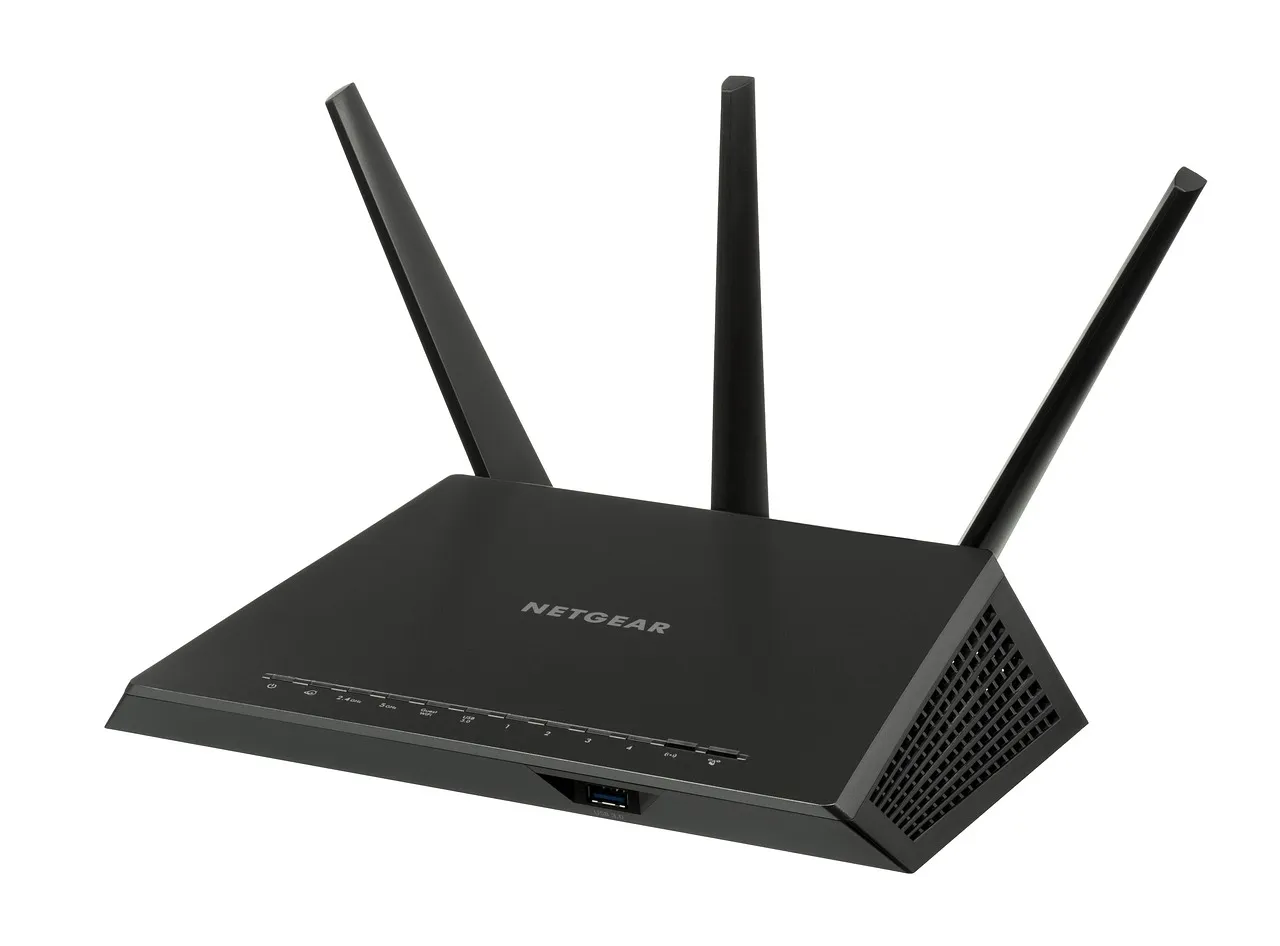
Most people put their router wherever the cable installer left the modem. That is almost always a corner of the house near the wall where the cable enters the building, which is the worst possible spot for WiFi coverage.
WiFi signals radiate in a sphere. If the router is in a corner, roughly three quarters of the signal goes outside your walls. Move it to the center and nearly all of the signal stays inside your home.
A router in a corner broadcasts roughly half its signal outward into the house and half into the two exterior walls, wasting that portion of its effective range. Moving it even a meter away from the corner toward the center of the room can increase usable coverage area by around a fifth to a third.
Why Central Placement Is the Single Biggest Fix
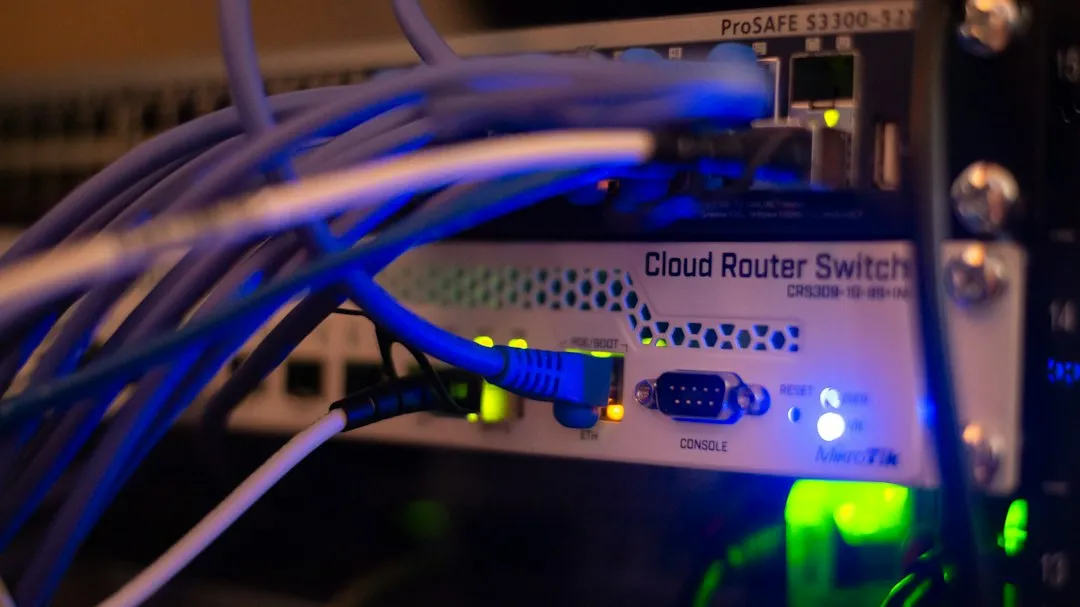
Central placement is the single biggest factor in even coverage. Moving your router from a corner closet to a central, elevated spot can double or triple your wireless speed with zero cost.
The consistent pattern across real-world testing is clear: high beats low, central beats corner, and open beats enclosed. Those three principles applied together resolve the majority of home WiFi performance problems that are not caused by the ISP connection or the hardware itself.
The Half-Home Coverage Problem Is a Physics Issue
Poor router placement alone can reduce usable coverage by up to half. ISP engineers install your router where the phone socket or fibre termination point is, typically in a hallway cupboard, a corner of the front room, or behind the television. This is almost never the optimal location for WiFi coverage.
WiFi signals are radio waves that radiate outward from your router in all directions, much like a bubble expanding from a central point. They pass through walls, floors, and ceilings, but each material they penetrate absorbs a portion of the signal energy and reduces the range and speed available to devices on the far side. That physics does not negotiate. It just quietly cuts your home in half.
Concrete, Brick, and the Walls That Block Everything
Concrete, with and without metal reinforcement, is one of the worst building materials for wireless signals to pass through, but masonry block and bricks can also be serious barriers for WiFi. Plywood and drywall come close to zero signal loss in tests. These findings are based on extensive experiments performed by the US National Institute of Standards and Technology.
A typical Victorian-era double-brick external wall can produce around 30 dB of signal attenuation at 5 GHz from a single wall alone. The 2.4 GHz band travels farther and penetrates solid obstacles more effectively, but the 5 GHz band delivers much higher speeds at shorter distances while struggling badly with thick concrete or brick walls.
To put this in perspective: if a WiFi signal has a range of 200 meters in open space, passing through just one interior wall can reduce that to around 30 meters. A second wall drops it to roughly 4.5 meters. That is not a slow connection. That is effectively no connection.
The Floor Problem: Why Upstairs Often Gets Cut Off
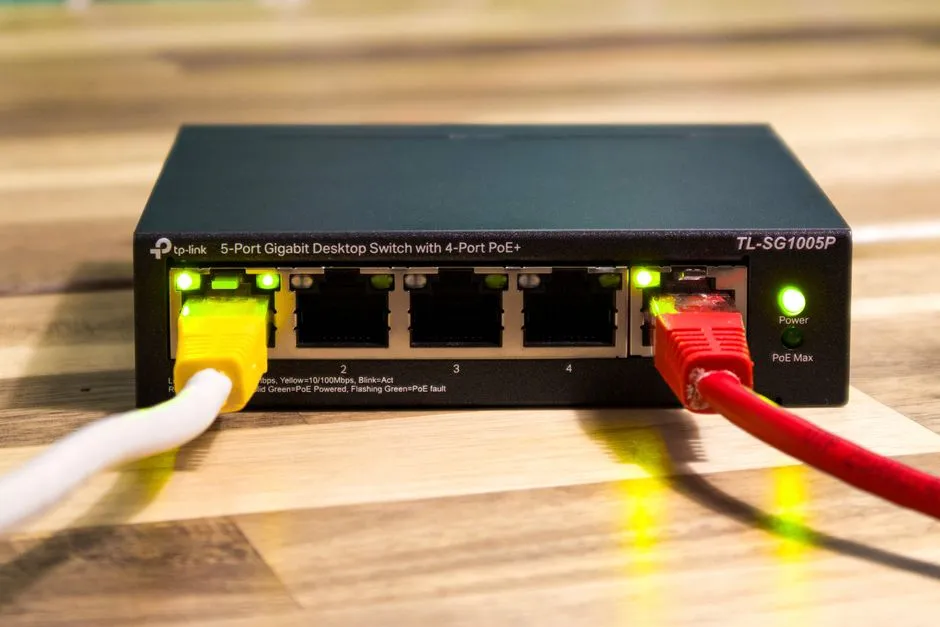
Positioning the router on the floor can lead to signal absorption by the ground and limit its upward broadcast, which is particularly damaging in multi-story homes. Basement placement forces the signal through two floors of material, significantly weakening it.
In two-story homes, placing the router high on the ground floor helps balance coverage between floors. In a two-story house, the ideal spot is on the ceiling of the first floor or the floor of the second floor, which effectively puts it at the vertical center of the building. Few people ever think about the vertical dimension of their WiFi signal, and that omission shows up as dead zones in upstairs rooms.
Hiding the Router in a Cabinet Makes Things Worse
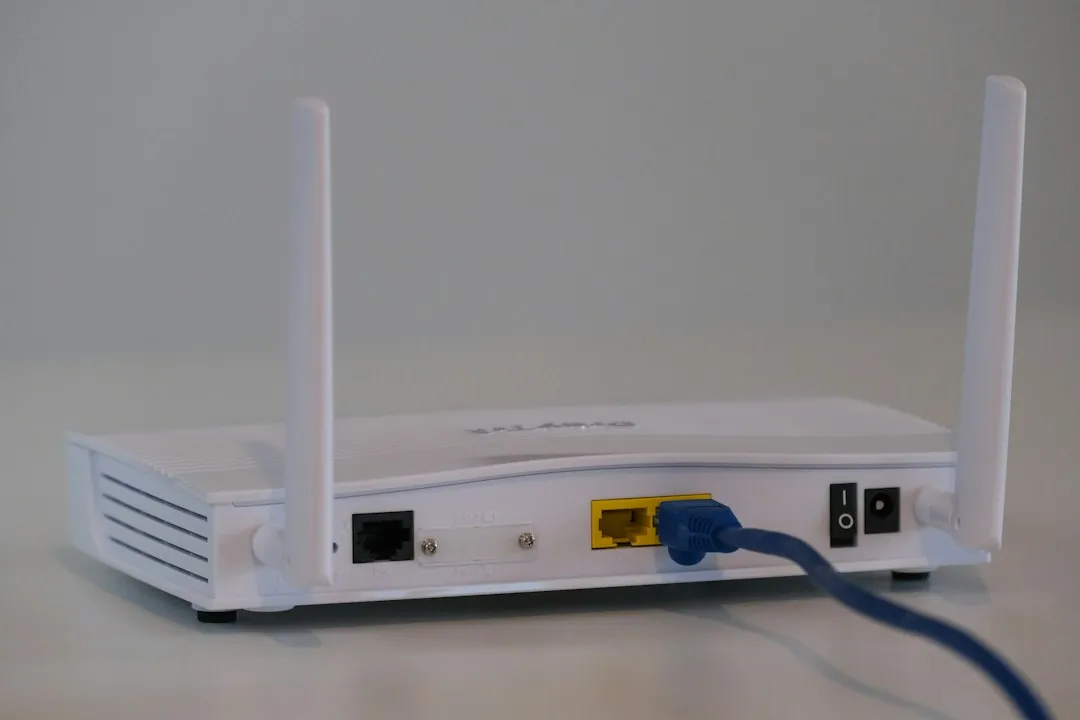
If your router is tucked away in a corner, hidden inside a cabinet, or forced to push through thick walls to deliver WiFi to your entire home, bad WiFi may really be more of a problem with placement than needing an extra device.
Concealing the router in enclosed spaces such as cabinets or behind furniture, while aesthetically appealing, can severely impede signal propagation and trap heat, potentially leading to overheating and reduced performance. The router gets hotter, slows down, and the signal does not even leave the cabinet cleanly. It is a double penalty for trying to keep things tidy.
Metal Objects and Appliances Are Silent Signal Killers
Metal objects can interfere with WiFi more than many homeowners realize. Filing cabinets, metal shelves, refrigerators, mirrors, appliances, water heaters, and large electronics can all weaken or reflect the signal.
In controlled tests, routers placed behind TVs lose up to around three-fifths of their usable range due to interference from electronics and the signal-blocking effect of large physical objects. TVs absorb WiFi signal, and metal TV mounts reflect it, creating a reliable coverage gap. It is one of the most common living room setups imaginable, and one of the worst for wireless performance.
Microwave interference can affect WiFi, especially if the router is placed near the kitchen. Microwaves can interfere with certain WiFi signals while they are running. The overlap happens in the 2.4 GHz band, so keeping the router away from the kitchen is sound advice, not just a precaution.
Antenna Angle Is Often Overlooked
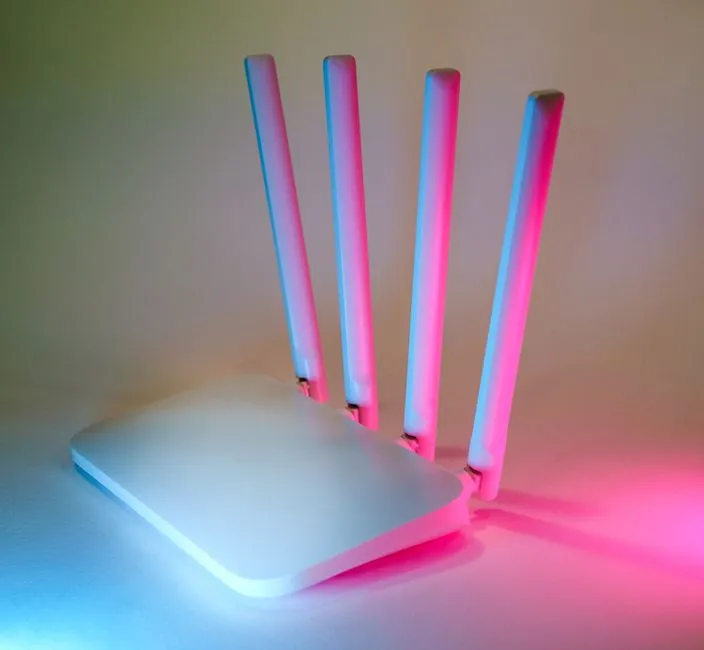
Most modern WiFi routers use omnidirectional antennas that spread signals in multiple directions. Adjustable antennas should point vertically for single-story homes and at mixed angles for multi-story homes. The logic is simple: an antenna pointed straight up radiates signal horizontally, which is where most devices in a single-floor home actually sit.
For a single-storey home, pointing all antennas straight up covers the maximum horizontal spread, which is where most of your devices are located. In a two-story layout, pointing one antenna vertical and one at a roughly 45-degree angle helps push signal both sideways and upward at the same time. It costs nothing to adjust and can make a noticeable difference.
Mesh Systems Still Need Good Placement

Unlike single-point routers, mesh networks rely on the positioning of multiple nodes to keep signals strong and consistent. Put them in the wrong places, and even a top-tier setup can underperform. That often means the places you work, stream, or game are the ones with the worst signal.
If you put mesh nodes too close, they can cause interference, while placing them too far apart weakens signals and creates dead zones. Positioning the main router away from the home’s center creates dead zones and speed drops even in a mesh setup. A mesh system is not a get-out-of-jail-free card if the primary node starts in the wrong place.
The Simple Fix That Most People Skip
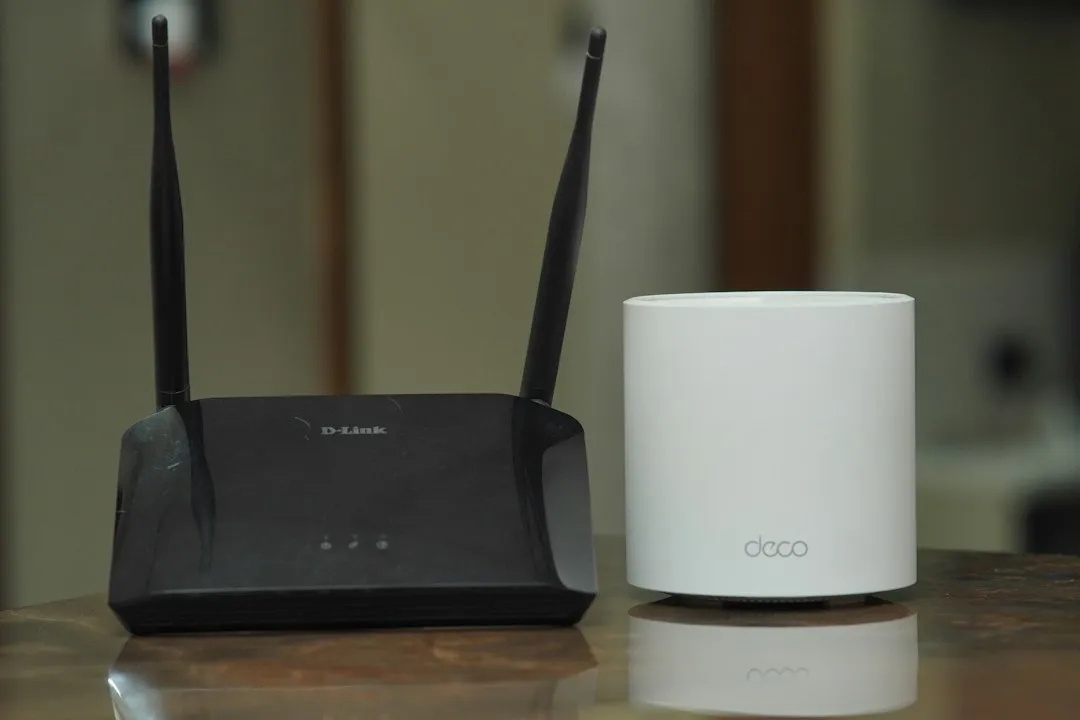
Bad WiFi is usually a placement and settings problem, not a hardware problem. Most coverage issues trace back to placement rather than hardware, and repositioning the router is often enough to fix them. Buying a newer, more expensive router before trying this is essentially skipping the free solution in favor of an expensive one.
Most router placement improvements cost nothing but five minutes and a shelf. Elevating your router can improve range and coverage by reducing nearby obstructions and giving the signal a cleaner path through rooms. A shelf or tabletop usually performs better than placing the router on the floor or behind furniture. In most homes, that move alone fixes the dead zone in half the house.
The Takeaway
AI Disclaimer: This article was created with the assistance of AI tools and reviewed by a human editor.