
Most people blame their phone’s age when the battery starts giving out before dinner. The device must be worn down, they figure, so it must be time for a new one. The truth is often far simpler, and far more fixable, than that.
A handful of default settings, many of them turned on at the factory, quietly eat through your charge all day long. If your smartphone barely makes it through the day, you may not need a new battery or a new phone. Several phone settings can quietly keep your screen, apps, GPS, wireless connections, and background processes working harder than necessary. Here are the ten biggest culprits.
1. Screen Brightness Set Too High
Your display is the single most power-hungry component in your phone, and brightness is the dial that controls how much it drinks. Display brightness typically accounts for roughly thirty to fifty percent of total battery consumption under normal usage conditions. That’s a significant chunk of your daily charge tied to just one slider.
Users who consistently operate at maximum brightness often experience thirty to forty percent shorter battery life compared to those using moderate brightness levels. The gap is real and measurable, not just theoretical. Under direct sunlight, brightness can spike to one hundred percent within seconds, increasing power draw by up to 2.3 times compared to indoor levels, and these peaks can shorten overall battery life by fifteen to twenty percent over a full day of outdoor use.
Keeping brightness around fifty percent indoors is a reasonable starting point. Even small consistent reductions compound into meaningful savings over a full day of screen-on time.
2. Always-On Display
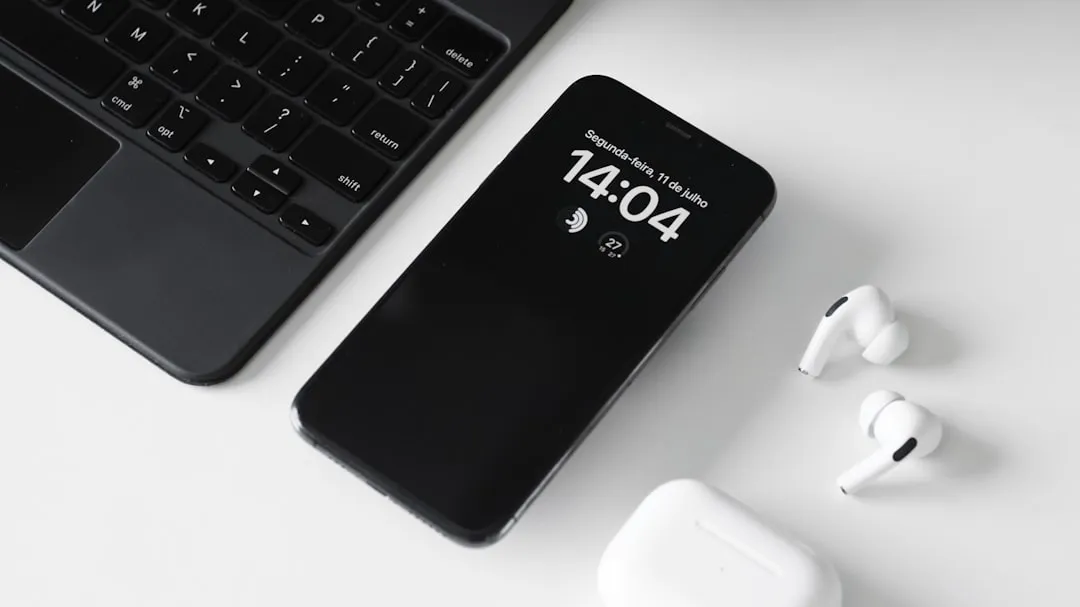
Always-On Display, or AOD, feels like a minor convenience. You glance at the time without pressing a button. Seems harmless, right? According to DXOMARK, enabling the Always-On Display can cause a phone’s battery to drain up to four times faster. That’s a staggering cost for a feature most people barely think about.
While your screen is off, these hidden features are constantly pinging servers, scanning for devices, and silently draining your battery. AOD is one of the main contributors. Turning it off, or switching to a schedule so it only activates at specific hours, is one of the quickest wins available.
3. High Refresh Rate Locked at 120Hz
Modern smartphones now routinely ship with 120Hz displays, and it really does make scrolling look smoother. The trade-off, though, is significant. Phones with 90Hz and 120Hz displays refresh fifty to one hundred percent more frequently than regular 60Hz displays, which requires extra processing power and puts further strain on your battery.
Most modern mid-range phones come with smooth 120Hz displays, and while it looks fantastic, rendering 120 frames every second puts a heavy load on the battery. If your phone offers an adaptive or auto refresh rate option, use it. Some modern phones have adaptive refresh rates that help combat battery drain by dropping down to as low as 1Hz when viewing static content. That kind of intelligent scaling makes a genuine difference.
4. 5G Always On in Weak Coverage Areas

5G speeds sound great on paper. In practice, the network connection is often costing you more battery than the speed is worth. Research from Ookla puts the average battery drain increase at between six and eleven percent compared to LTE, based on real-world usage data. That’s before factoring in patchy coverage.
The 5G modem draws more power than the 4G LTE modem. Most carriers still run what’s called Non-Standalone 5G, which means your phone connects to both 4G and 5G simultaneously, essentially running two radios at once instead of one. In areas with patchy 5G coverage, the modem burns extra power searching for a signal it can’t reliably hold, and the gap gets worse.
Apple offers 5G Auto, also called Smart Data mode, which allows an iPhone to shift between 5G and LTE based on what the phone needs, and Apple says this setting is designed to optimize battery life. Android users can manually switch to LTE when indoors or in low-coverage zones.
5. Background App Refresh Running Unchecked
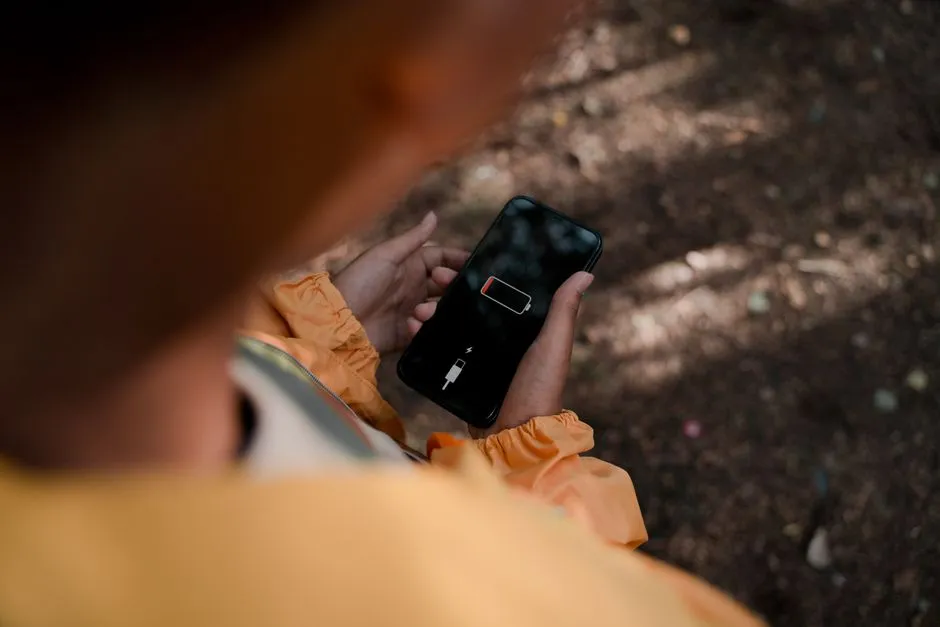
Background App Refresh is the setting that lets apps update their content while you’re not actively using them. Social media apps checking for new posts, weather apps pulling fresh data, news apps downloading headlines. All of it happens quietly in the background, and all of it costs power. Independent testing shows unrestricted apps like Facebook, Instagram, and weather services can increase overnight battery drain by twenty-two to forty percent, with zero benefit to notification reliability.
Disabling Background App Refresh on iOS meaningfully extends battery life in 2025 by an average of eight to twelve percent daily for typical users. The good news is you don’t have to go cold turkey. You can turn off Background App Refresh for social media, streaming, shopping, and gaming apps, and those apps will still refresh once they’re opened. Otherwise they update themselves frequently and can cause significant battery drain and data use.
6. Location Services Always Enabled for Every App
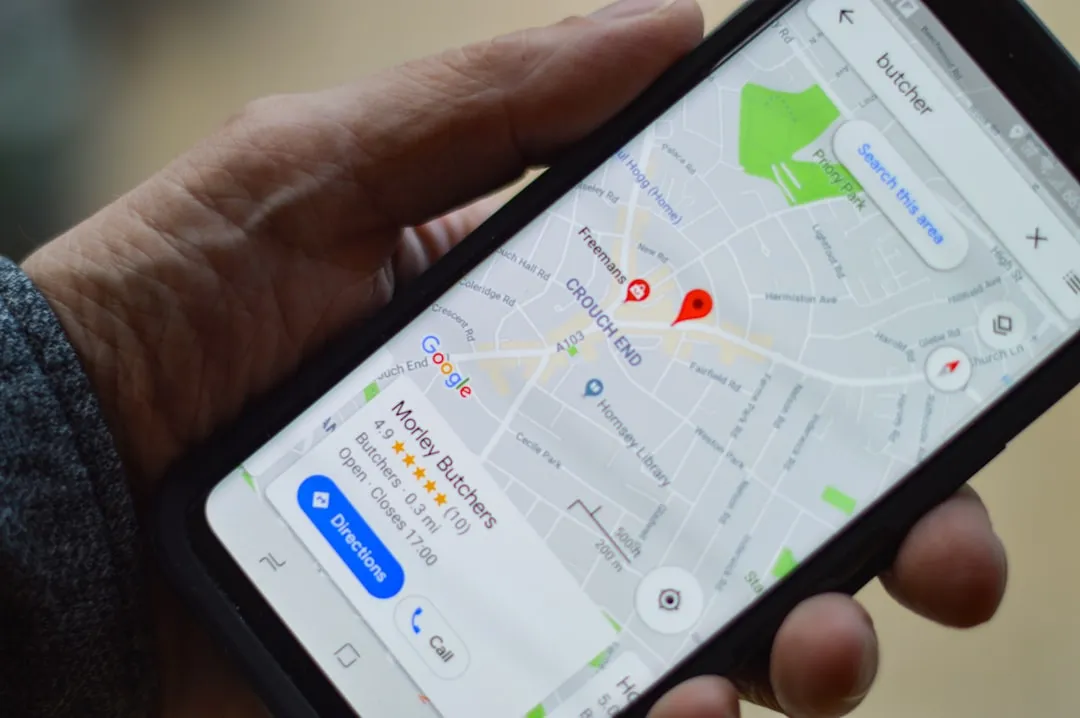
Location tracking is one of those features that apps request far more aggressively than they need. Location services rank as the second biggest battery drain overall. GPS tracking constantly communicates with satellites and mobile towers, which requires significant power, and apps like maps, weather services, and social media platforms frequently request location data, creating continuous battery consumption even when you’re not actively navigating.
Some apps access location data unnecessarily, leading to excess battery drain. Apps running GPS in the background are some of the biggest power hogs. Reviewing your app location permissions and switching from “Always” to “Only While Using” for most apps takes about two minutes and delivers a noticeable difference.
7. Push Notifications from Too Many Apps
A single notification seems trivial. One buzz, one screen flash, done. The problem is that few people receive just a handful of notifications per day. Push notifications, automatic app updates, and system maintenance tasks all consume power during standby time. Push notifications require your phone to maintain constant connections to various servers, and each notification can trigger your screen, vibration motor, and network activity.
Apps that send frequent notifications tend to wake the system more often, and reducing unnecessary notifications indirectly lowers background refresh activity as well. Going through your notification settings and disabling alerts for apps that don’t genuinely need your immediate attention is one of the more underrated battery fixes available.
8. Wi-Fi Scanning and Bluetooth Left On Constantly
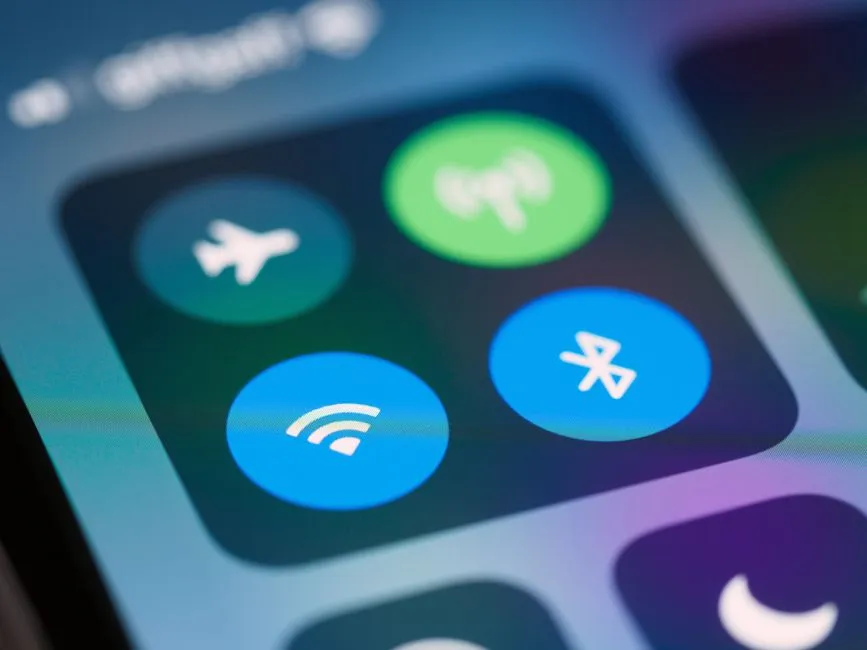
Both Wi-Fi and Bluetooth are designed to run efficiently in modern phones, but leaving them in an active scanning state when you don’t need them still adds up. Wireless connections, including Wi-Fi, Bluetooth, and mobile data, create constant battery drain as your phone searches for networks and maintains connections. When your Wi-Fi signal is weak, your phone works harder to maintain the connection, using even more power than usual.
Each app may only use a small amount of power individually, but combined they create a constant drain that silently chips away at battery life. Wireless connections contribute to that collective toll. If you’re somewhere without a reliable Wi-Fi network, disabling Wi-Fi entirely prevents your phone from endlessly hunting for one.
9. Screen Timeout Set Too Long
This one gets overlooked almost universally. Your screen timeout setting determines how long your display stays on after you stop interacting with it. Many people leave it at thirty seconds, one minute, or even longer. Every one of those extra seconds means your display, the biggest power consumer in the device, is burning through charge for no reason.
Your phone’s display is the biggest battery drain, typically consuming twenty to thirty percent of your total battery life. A screen timeout of fifteen to thirty seconds is usually more than sufficient for practical use. Apple, Google, and Samsung all recommend reviewing battery usage, display settings, background activity, and power-saving features when a phone is losing charge too quickly. Screen timeout is one of the first things they flag.
10. Battery Saver Triggered Too Late
Most phones ship with Battery Saver set to activate automatically when the battery reaches fifteen percent. By that point, a significant portion of your charge is already gone. Solutions recommended by tech experts involve restricting non-essential app permissions, enabling adaptive refresh rates, and adjusting Battery Saver activation to thirty to forty percent instead of the default fifteen percent.
Setting your Battery Saver threshold higher means your phone throttles back background activity, reduces refresh rates, and limits network polling much earlier in the day. Android phones juggle dozens of background processes every day, from syncing multiple accounts to fetching notifications, refreshing apps, and tracking location. Each app may only use a small amount of power individually, but combined they create a constant drain that silently chips away at battery life. Getting Battery Saver involved earlier in that cycle is a practical, underused solution.
The Takeaway
None of these settings require technical knowledge to change. Most take under a minute to adjust, and many of these settings take less than a minute to fix. The display, background apps, location access, and network settings are doing most of the damage, and they’re all sitting in plain sight inside your settings menu.
The bigger insight here is that battery life is rarely about a single culprit. It’s the combination of a bright screen, always-on display, 5G hunting for signal, background apps refreshing every few minutes, and a Battery Saver that waits until it’s nearly too late. Address several of these at once, and the improvement can be striking. Your phone probably has more life in it than you’ve been giving it credit for.
AI Disclaimer: This article was created with the assistance of AI tools and reviewed by a human editor.