

Most people pick up a smartphone and never look twice at the settings menu. For younger users, the defaults feel fine. For older adults, though, those defaults can quietly become a source of daily frustration, squinting at tiny text, missing notifications, struggling with icons that blend together in the glare.
The good news is that the phones in everyone’s pockets are packed with settings designed precisely for this. You don’t need a special “senior phone.” You just need to know where to look. Here are ten settings worth changing right now.
1. Increase Text Size Across the Entire Phone

Many seniors experience difficulty reading small text on a smartphone screen. This is not a personal failing. Presbyopia is a universal age-related vision condition, affecting nearly all adults over 45. Approximately 128 million Americans, or nearly 90% of adults aged 45 and older, are affected, with studies indicating prevalence estimates ranging from 83% to 88.9% in this age group.
One of the easiest ways to improve accessibility on a smartphone is to adjust the font and display size. Both iPhone and Android devices can make text significantly larger without changing how apps function. On iPhone, go to Settings, then Display & Brightness, then Text Size and drag the slider right. For maximum size, enable Settings, then Accessibility, then Display & Text Size, then Larger Text.
2. Turn On Bold Text
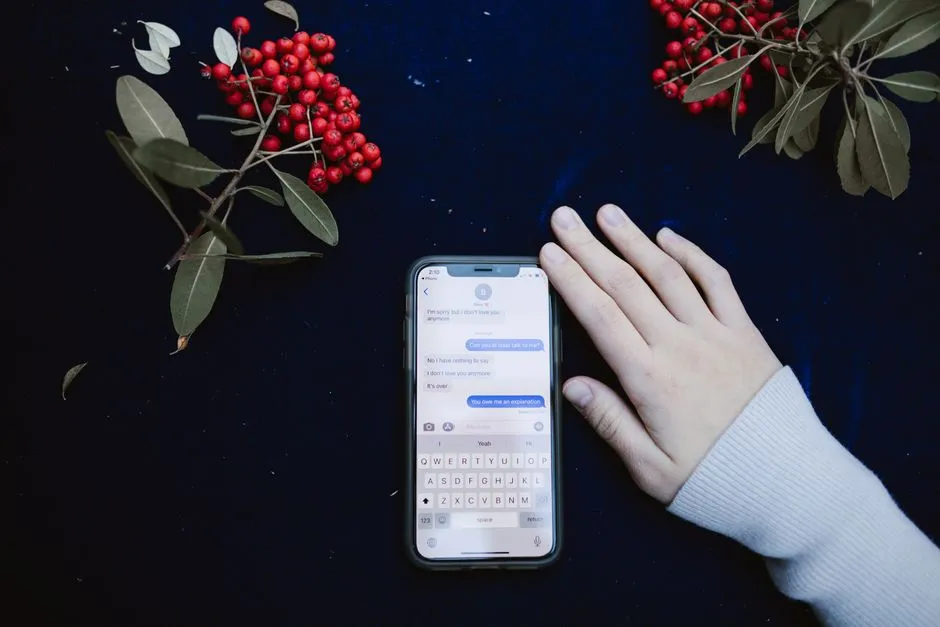
Sometimes size isn’t enough; contrast is what matters. Gray text on a white background is very common in modern designs but is extremely hard to read for low-vision users. Bold text addresses exactly that by making each character thicker and more defined against any background.
Cranking up the text size and turning on “Bold Text” in the accessibility settings should be a first step. Also look for a setting called “High Contrast” or “Increase Contrast.” Many modern Android versions allow you to make all system fonts bold, making characters appear thicker and much more defined. It costs nothing and takes under thirty seconds to enable.
3. Enable Display Zoom to Enlarge Everything

Display Size or Screen Zoom enlarges the entire interface, including buttons, icons, and menu cards. This helps ensure that touch targets are easier to see and hit. This is different from just scaling the font. It gives the whole experience more visual breathing room.
To make other on-screen elements larger on iPhone, choose Display Zoom and Larger Text from the Display & Brightness menu. On a 6.5-inch display, bumping font size to the largest system setting still leaves enough room for full sentences without truncation, while on a 5.5-inch phone, the largest font setting can make some apps unusable. Choosing a larger screen and enabling zoom together is a genuinely powerful combination.
4. Activate High Contrast Mode
High Contrast Text forces all text to display in high-contrast colors, such as solid black text with a thin outline on light backgrounds. This is found under Vision settings on Android. On iPhone, seniors can enable Increase Contrast and Reduce Transparency in Accessibility settings to make every menu and button edge sharply defined.
In Accessibility, then Display & Text Size, the Larger Text option provides even bigger sizes, and settings like Increase Contrast or Reduce Transparency can further improve clarity. For anyone who has ever struggled to tell where one element ends and another begins on a modern phone screen, this setting alone can feel like turning on a light.
5. Use Screen Magnification for Close-Up Reading

For seniors who may need even more support, smartphones offer Zoom or Magnification Gestures, allowing users to zoom in on any part of the screen. Double-tapping the display or using two-finger gestures can provide a closer look at smaller items. Think of it as a built-in magnifying glass that’s always available.
On most smartphones and tablets, which are touchscreen, you can “pinch” the screen to zoom in and out, for example to zoom in on a webpage or look more closely at a photo. VoiceOver reads whatever is on the screen aloud, Zoom enlarges small text or photos, and Voice Control lets users open apps or dictate messages simply by speaking. These three tools together cover a wide range of visual and physical needs.
6. Switch On Easy Mode or Assistive Access
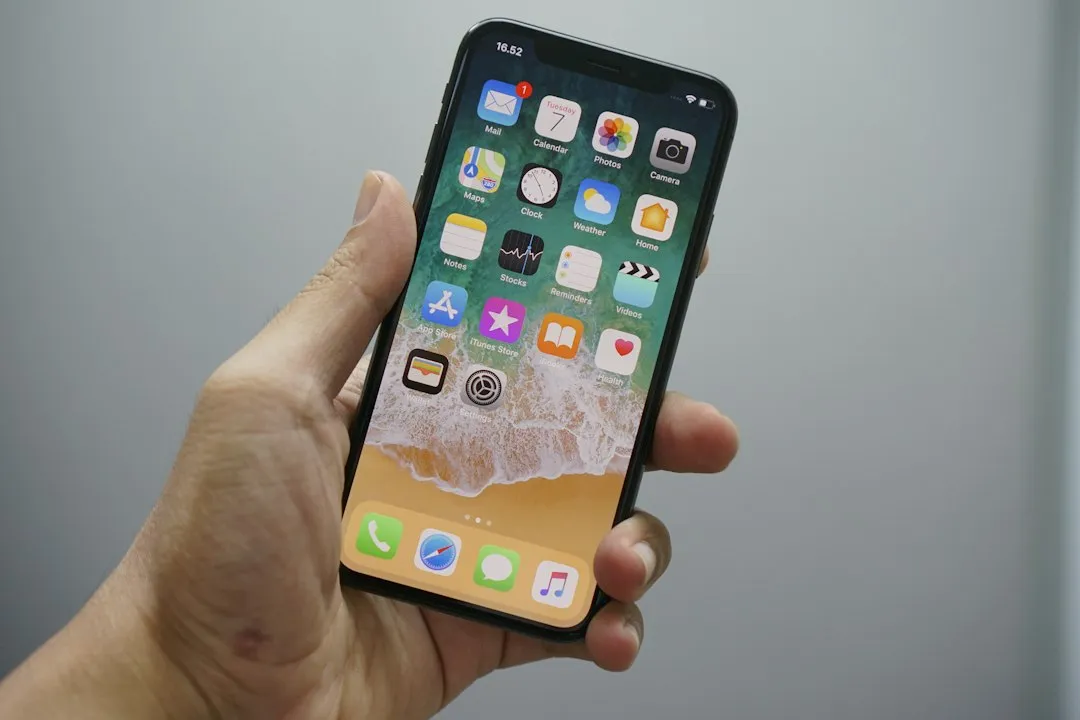
The senior mode on iPhone, officially called Assistive Access, is designed to make the iPhone much easier for older adults to use. It was introduced with iOS 17 and focuses on keeping things simple. Assistive Access makes the text in iOS bigger, but also introduces a simpler layout for menus and the main home screen. Buttons are significantly larger and easier to hit, and some apps will have a reduced set of options.
Samsung Galaxy phones don’t have a Simple View but do have Easy Mode. From Settings, choose Display, then pick Easy Mode. Text and other elements on screen will be made larger, the interface will be simplified to some extent, and a touch-and-hold delay is applied. These whole-device modes are worth trying before reaching for a third-party app.
7. Reduce Motion to Prevent Dizziness and Confusion

Modern phones love to use swooping, zooming animations when opening apps. For seniors with sensitive vision or vertigo, these animations can literally make them dizzy. Turning them off creates a snappy, straightforward experience. This setting is often overlooked because it’s not labeled as an accessibility tool, yet the effect is immediate.
On iPhone, this option lives under Settings, then Accessibility, then Motion, then Reduce Motion. On Android it varies by device but is typically found under Accessibility or Developer Options. Mobile navigation remains a significant source of frustration for older adults, representing a substantial barrier to the adoption of digital technologies. Removing unnecessary animations is a simple step toward reducing that barrier.
8. Enable the Screen Reader for Hands-Free Navigation
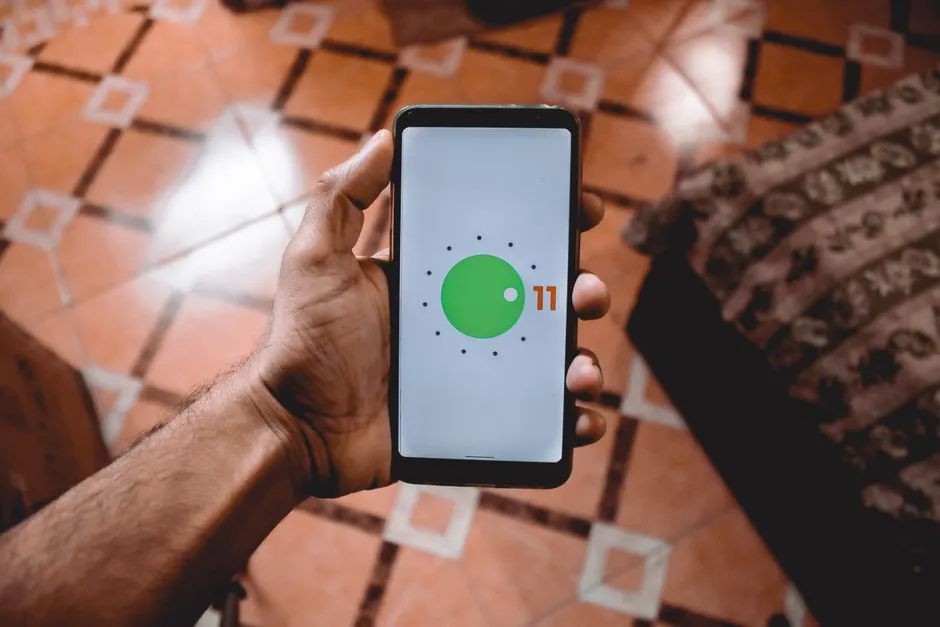
Android has launched a series of updates with new options like the TalkBack screen reader. This feature describes actions and tells users about alerts and notifications. For someone who is blind or has low vision, TalkBack provides spoken feedback, allowing them to navigate their device without seeing the screen.
You can set up your phone or tablet to read notifications, messages, emails, and webpages aloud. On some phones, you can test out different voices and adjust the speed of the voice. For older adults dealing with both vision and fatigue, listening instead of reading can reduce eye strain considerably over the course of a day.
9. Set Up Voice Control for Daily Tasks

Voice Access lets users control their device with their voice, using it to open apps, navigate, and compose texts. This is especially useful when lighting is poor, glasses are in another room, or hands are occupied. It removes the visual demand from routine tasks entirely.
Focusing on accessibility settings such as larger text, clear icons, and senior-friendly layouts allows the phone to match the user’s vision, hearing, and dexterity, without the need to buy a dedicated “senior phone.” Voice control is the natural extension of that philosophy. Enabling a voice assistant such as Siri or Google Assistant provides hands-free help across the device.
10. Adjust Screen Brightness and Color Settings
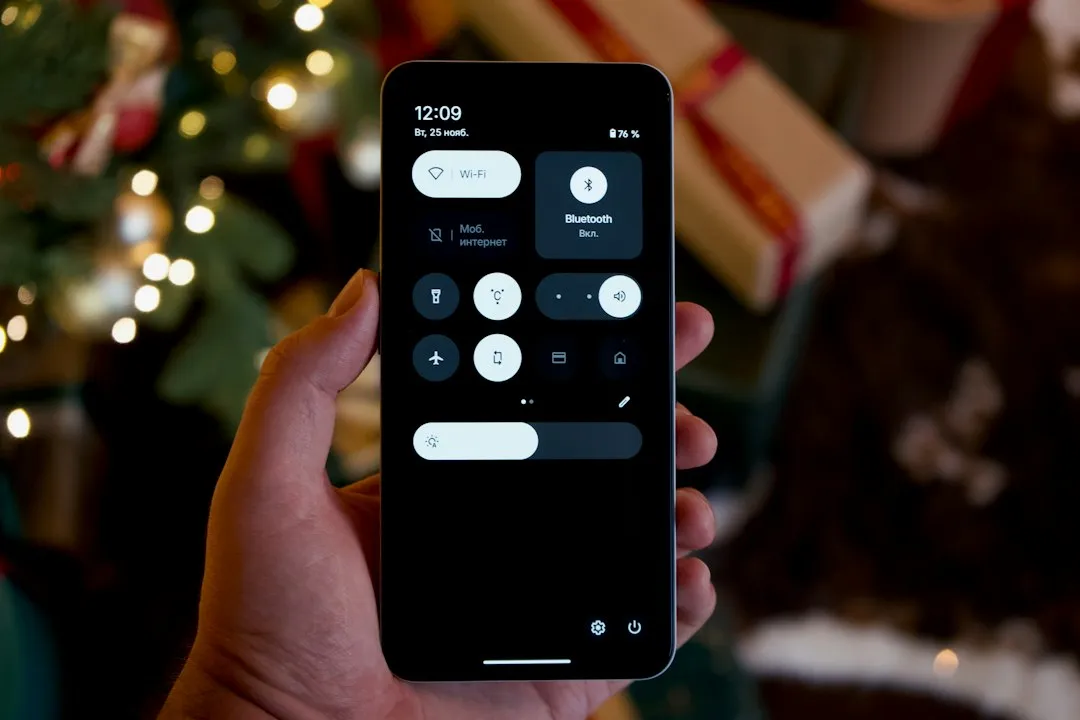
To change display colors and magnification on Android, go to Settings, then Accessibility, then Vision Enhancements. Brightness matters more than people realize. Vision impairment affects multiple functional domains including physical, cognitive, psychological, and social wellbeing, as well as overall quality of life. A screen set too dim or too bright adds unnecessary strain across all of those areas.
The AMOLED panel found in phones like the Samsung Galaxy A15 produces deep blacks and vivid contrast, which is a direct benefit for elderly users who struggle to distinguish text from background on washed-out LCD screens. Beyond hardware choices, enabling Night Shift or Night Mode on either platform warms the screen tone and reduces the harshness of blue-heavy displays, which can be particularly fatiguing for older eyes in the evening.
Final Thoughts

As of 2026, presbyopia affects a very large portion of the world’s population, with estimates suggesting around 1.8 billion people worldwide are presbyopic. That is about one quarter of the global population. The scale of that number makes it clear this is not a niche concern.
Research explores whether older adults are aware of and use accessibility settings, and to what extent these features enhance their user experience. The honest answer, based on available evidence, is that awareness remains low despite the features being genuinely powerful. Most senior phone accessibility settings won’t drain batteries faster. Features like larger text, bold fonts, and color adjustments have no impact on battery consumption.
There’s no trade-off here. These settings cost nothing, take minutes to apply, and can meaningfully change how comfortable a phone feels to use every day. The best time to change them was probably a few years ago. The second best time is right now.
AI Disclaimer: This article was created with the assistance of AI tools and reviewed by a human editor.